> ## Documentation Index
> Fetch the complete documentation index at: https://aircloud.mintlify.site/llms.txt
> Use this file to discover all available pages before exploring further.
# Air Container
> Deploy your AI container to Air Cloud
Air Container enables you to deploy containerized AI services quickly and efficiently.
Here's how it works:
## Deployment Flow
### Step 1. Select a project
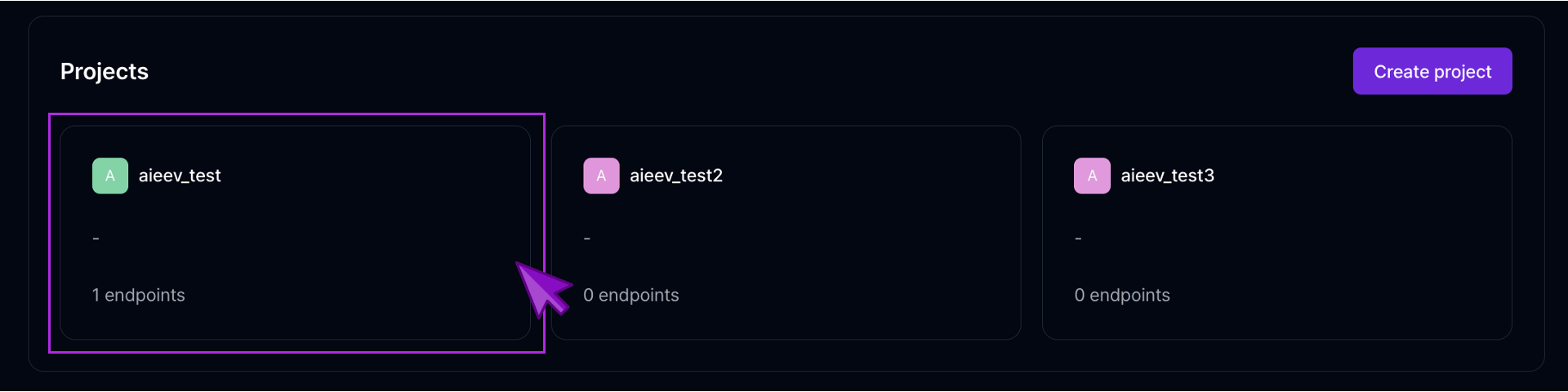 First, go to the Project Dashboard and select the organization and project you
created during onboarding.
First, go to the Project Dashboard and select the organization and project you
created during onboarding.
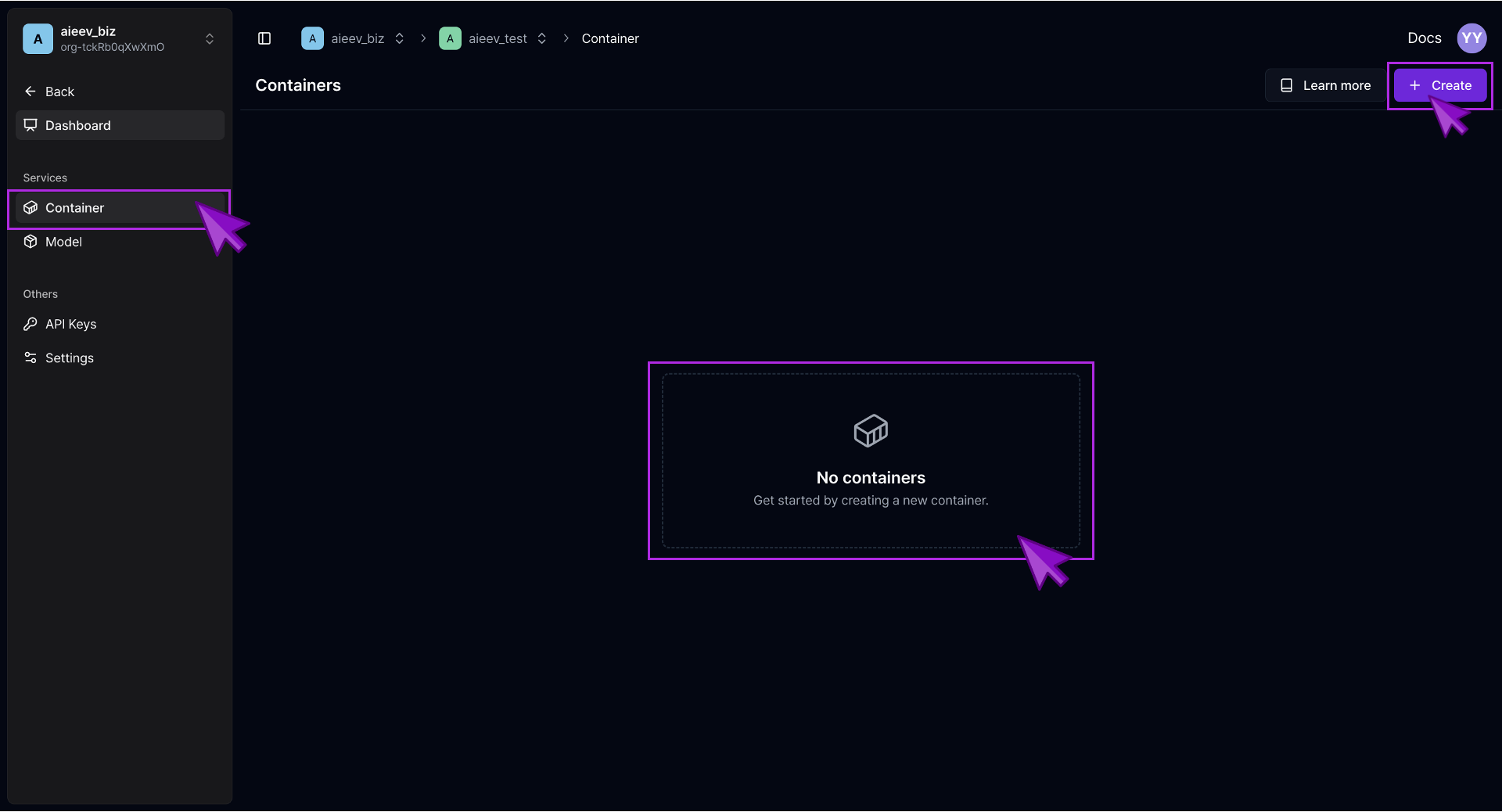 From the Service tab on the project page, select **"Container"** and click
**\[+ Create]** button to create a new container.
### Step 2. Base Settings
From the Service tab on the project page, select **"Container"** and click
**\[+ Create]** button to create a new container.
### Step 2. Base Settings
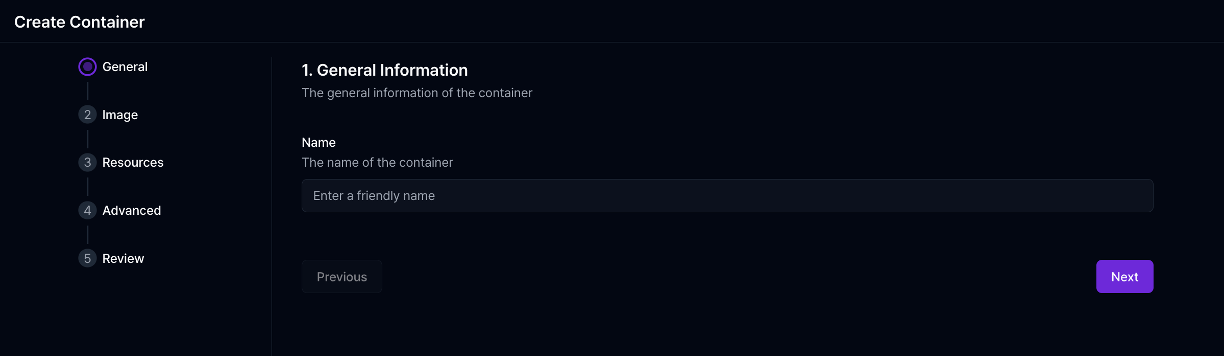
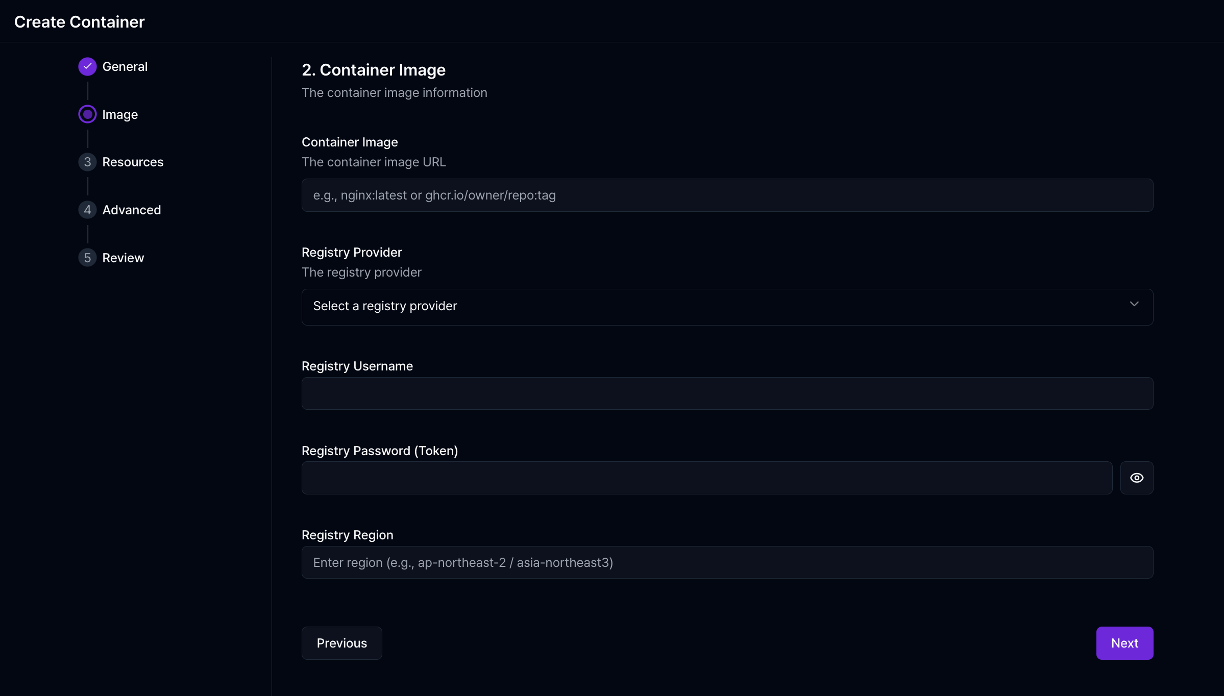 During container creation, the following fields are required:
A user-friendly name for the container.
Type of service the container provides (used for future Playground
integration).
Docker image URL of the container.
The registry where the image is hosted (e.g., GitHub Container Registry,
Docker Hub).
Required if pulling from a private registry.
### Step 3. Configure Resources
During container creation, the following fields are required:
A user-friendly name for the container.
Type of service the container provides (used for future Playground
integration).
Docker image URL of the container.
The registry where the image is hosted (e.g., GitHub Container Registry,
Docker Hub).
Required if pulling from a private registry.
### Step 3. Configure Resources
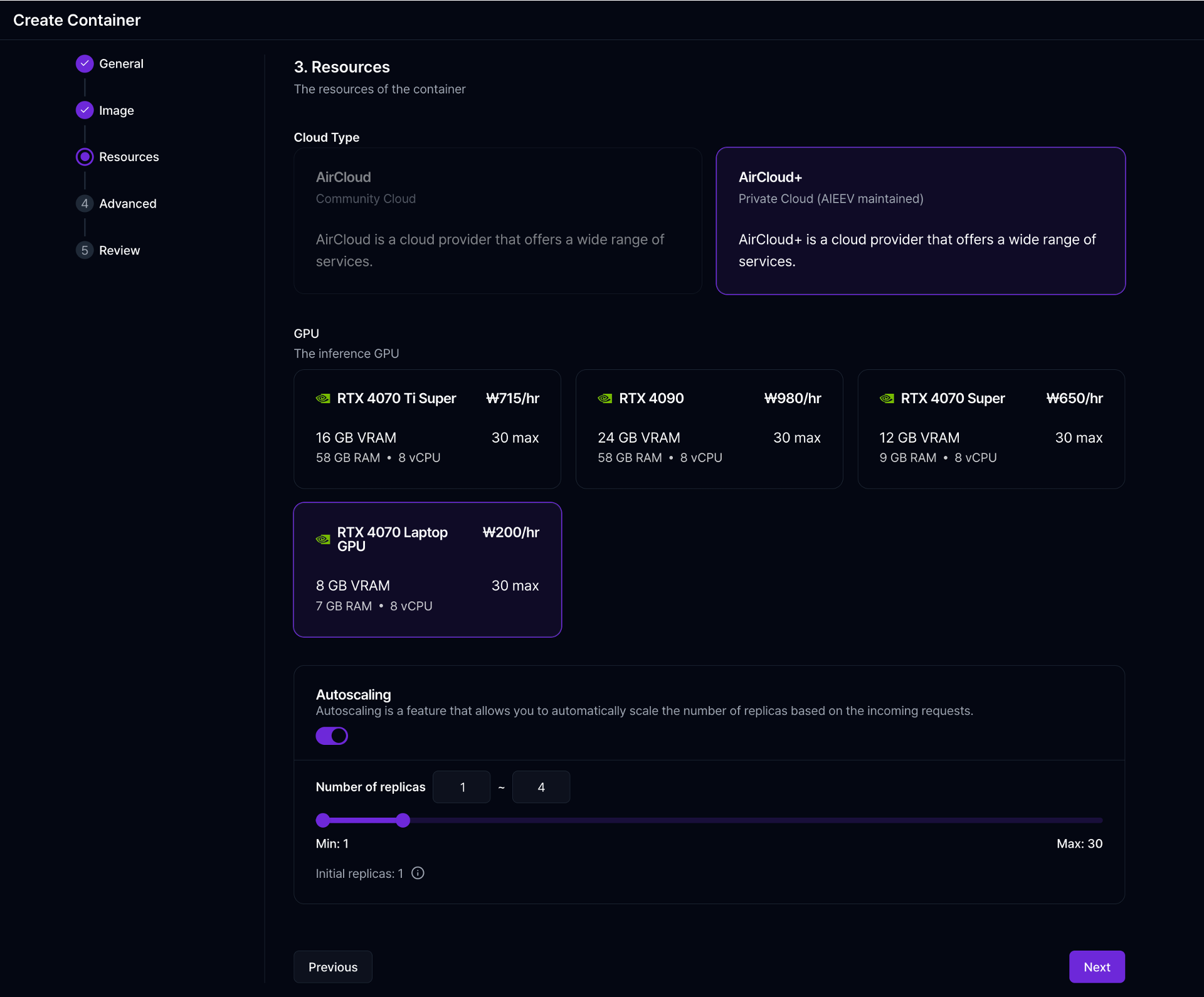 * **General Mode**: Define instance type (e.g., RTX 4070, 4090).
* **Autoscaling Mode**: Define minimum and maximum replicas (1 to 30). Higher
values require manual approval.
### Step 4. Advanced Settings
* **General Mode**: Define instance type (e.g., RTX 4070, 4090).
* **Autoscaling Mode**: Define minimum and maximum replicas (1 to 30). Higher
values require manual approval.
### Step 4. Advanced Settings
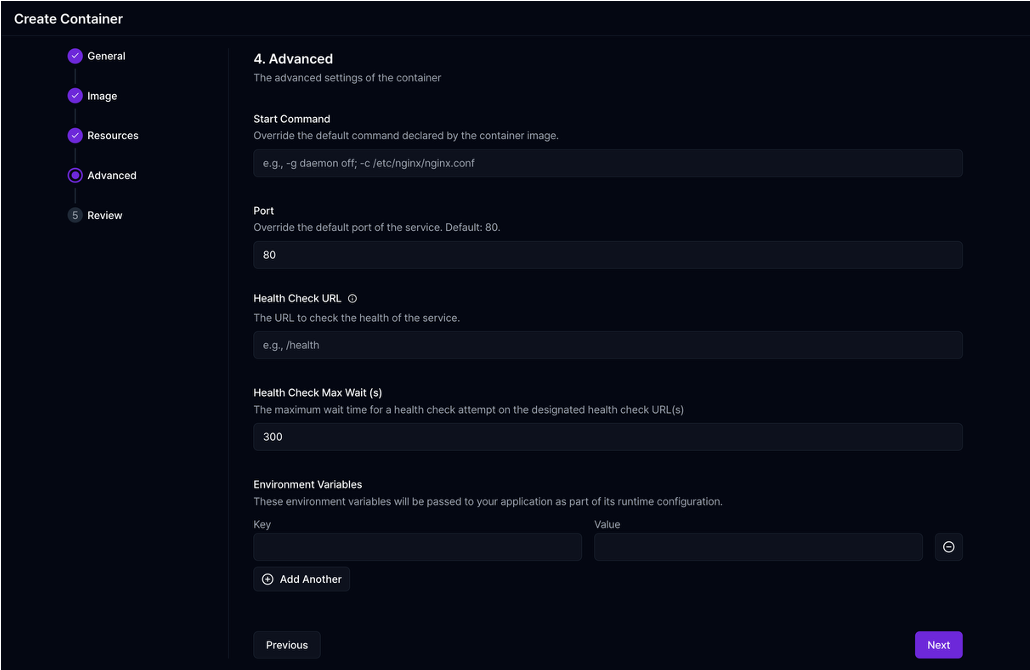 In the "Advanced" section, additional options are available:
Overrides the default startup command in the container image.
Overrides the default exposed port.
Path to check container health status (e.g., /api/health).
Set key-value pairs required for your app (e.g., DB credentials, API keys).
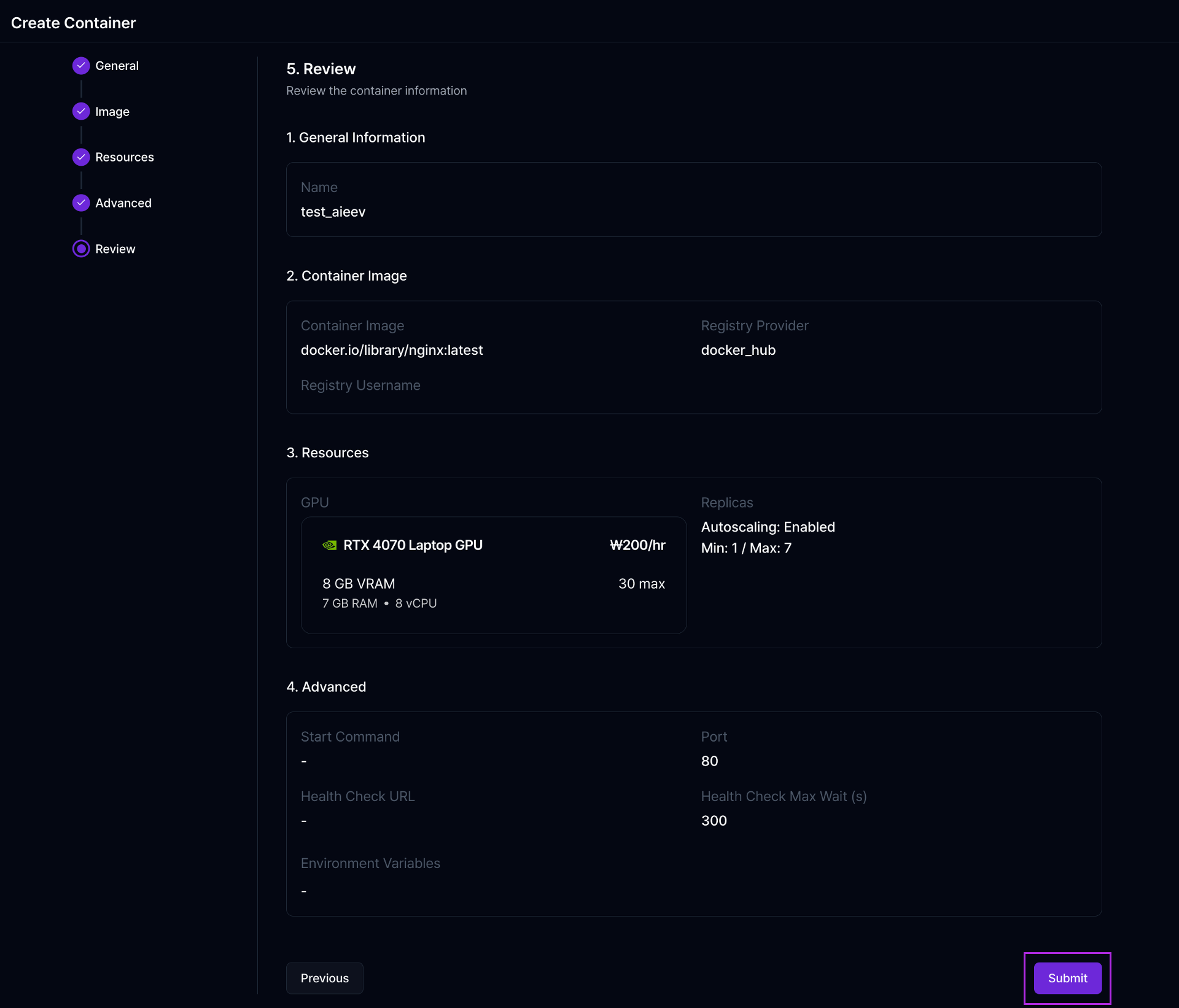
### Step 5. Review and Deploy
In the "Advanced" section, additional options are available:
Overrides the default startup command in the container image.
Overrides the default exposed port.
Path to check container health status (e.g., /api/health).
Set key-value pairs required for your app (e.g., DB credentials, API keys).
### Step 5. Review and Deploy
 ### Step 6. Deployment Completion
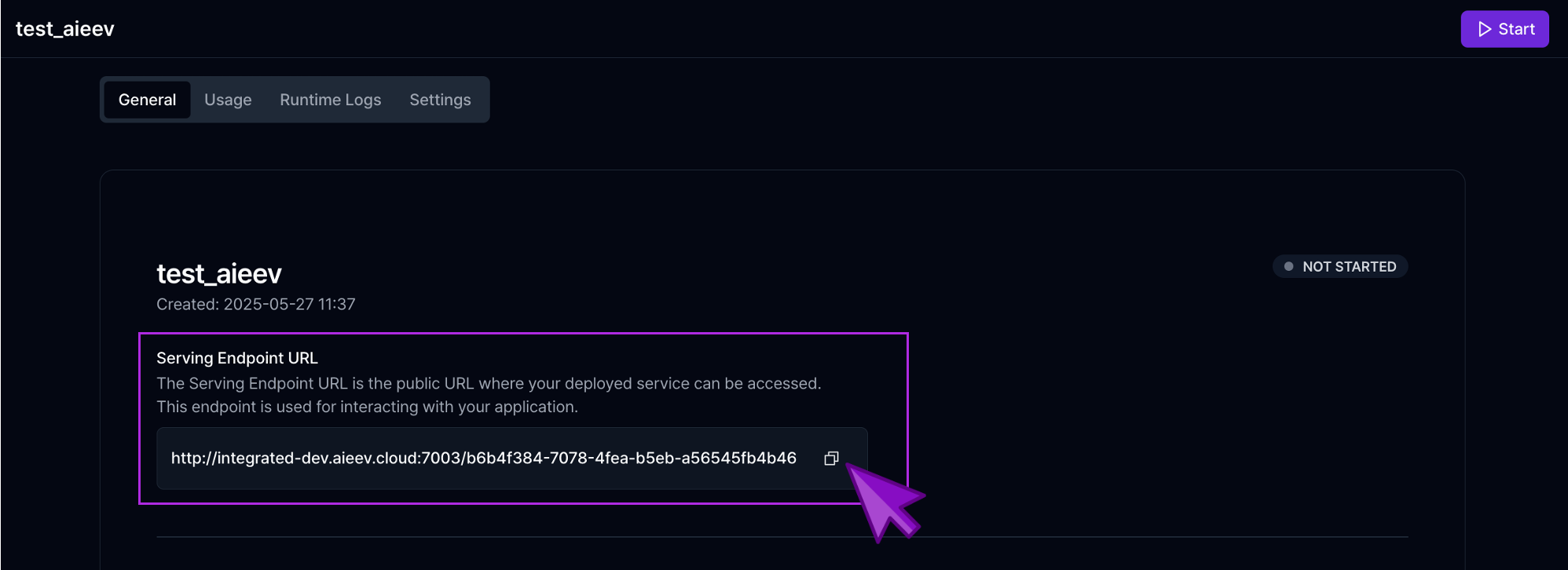 Once deployed, the container will start immediately, and an API endpoint or service URL will be provided.
* The container will appear in the left-hand list.
* Selecting an item will show its detailed information on the right.
* You can edit settings from the right panel.
* Clicking the "Dashboard" button will redirect you to a detailed management page with container status and activity logs.
## API Request
Once the container status is `RUNNING`, you can access the AI inference API using the exposed endpoint.
Replace the host part with your container's Endpoint URL.
```bash cURL theme={null}
curl --request POST \
--url ${ENDPOINT_URL}/api/v1/chat/completions \
--header "Accept: application/json" \
--header "Authorization: Bearer ${YOUR_API_KEY}" \
--header "Content-Type: application/json" \
--data '{
"messages": [
{
"role": "system",
"content": "You are a helpful assistant."
},
{
"role": "user",
"content": "Write a haiku about recursion in programming."
}
]
}'
```
Once deployed, the container will start immediately, and an API endpoint or service URL will be provided.
* The container will appear in the left-hand list.
* Selecting an item will show its detailed information on the right.
* You can edit settings from the right panel.
* Clicking the "Dashboard" button will redirect you to a detailed management page with container status and activity logs.
## API Request
Once the container status is `RUNNING`, you can access the AI inference API using the exposed endpoint.
Replace the host part with your container's Endpoint URL.
```bash cURL theme={null}
curl --request POST \
--url ${ENDPOINT_URL}/api/v1/chat/completions \
--header "Accept: application/json" \
--header "Authorization: Bearer ${YOUR_API_KEY}" \
--header "Content-Type: application/json" \
--data '{
"messages": [
{
"role": "system",
"content": "You are a helpful assistant."
},
{
"role": "user",
"content": "Write a haiku about recursion in programming."
}
]
}'
```